
Link a certificate to a site
Once a certificate is available in the Certificate Manager, it can be associated with a site via the Media Site Configuration.
:::(Info) (Note: )
Associating a certificate with a site enables port 443 in addition to port 80.
:::
To link a certificate to a site:
1. Open Delivery Service Management{target=_blank}.
2. Navigate to the My Media Sites page and select the site.
4. Under Media Site Info, click Select Certificate.
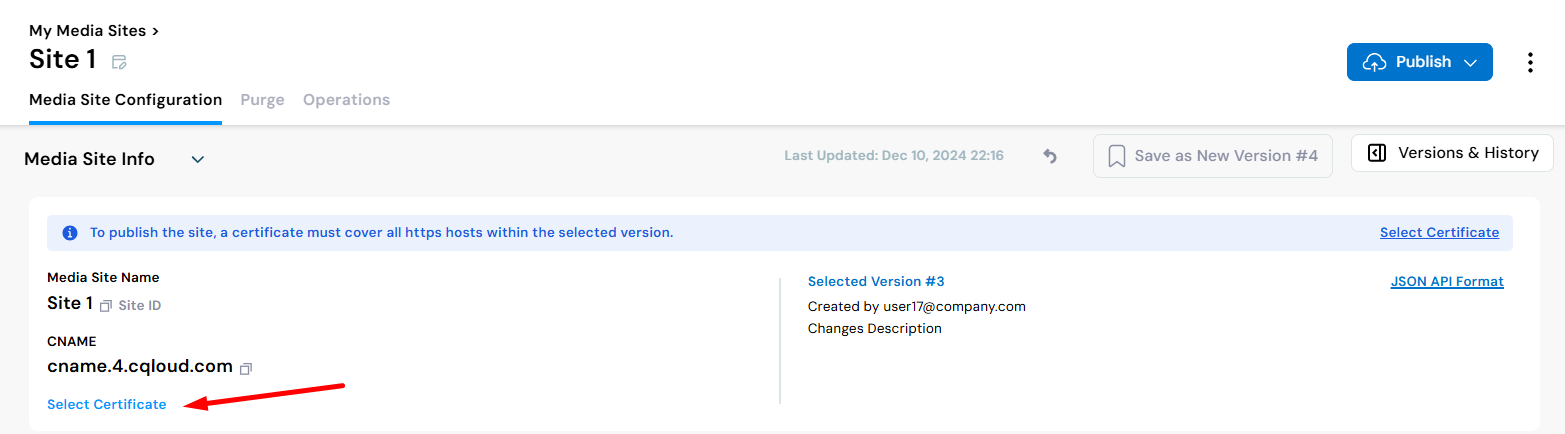
Or, if a certificate is already associated with a site, and you'd like to change the selection, click the Pencil icon next to Selected Certificate.
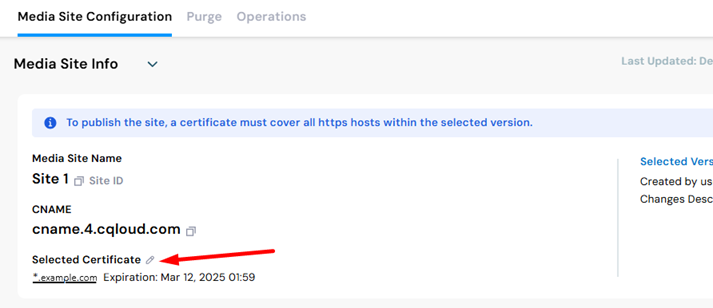
- Select from the list of available certificates and Apply.
The Certificate Selection dialog displays two certificate lists:- Compatible Certificates - Certificates that cover the HTTPS hosts of the selected site configuration version.
- Non-Compatible Certificates - Certificates available to your user that are not compatible with the site configuration version.
:::(Info) (Important!)
While you can link a certificate to a site without publishing, the certificate only becomes active the next time you publish the site{target=_blank}.
:::