
Discovery url signing
As a content publisher, you can use Qwilt URL Signing for authorization, to safeguard against unauthorized access to your content that is delivered through the Qwilt CDN.
This article describes how to configure the Discovery URL Signing rule, a custom rule developed for the Discovery use case. This rule is supported for Self Service Media Delivery.
Configure the Rule
You can configure Discovery URL Signing via the QC Services User Interface.
To configure a Discovery URL Signing rule:
- In the Key Name field, select the Key. If needed, first add the key to the dropdown menu.
-
In the Reject Code field, enter the HTTP response code that should be displayed in case authorization fails. The default is 403.
-
If you want the signature to be removed from the URL before a request is passed to the origin server, toggle on the Strip Token to Origin option.
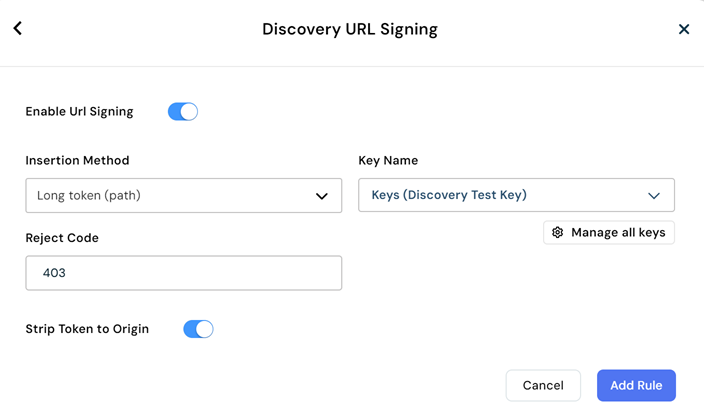
-
Choose Add Rule.
Add a Key
To make your key available for selection when configuring a Discovery URL Signing rule, upload it to the CDN. Note that all keys uploaded by users in your organization will be available to all projects created by users in your organization.
To upload a key:
1.Navigate to the Select Rule dialog.
2. In the Select Rule dialog, choose Discovery URL Signing.
3. In the Discovery URL Signing dialog, select Manage all Keys.
4. In the Key Management dialog, select Add Key.
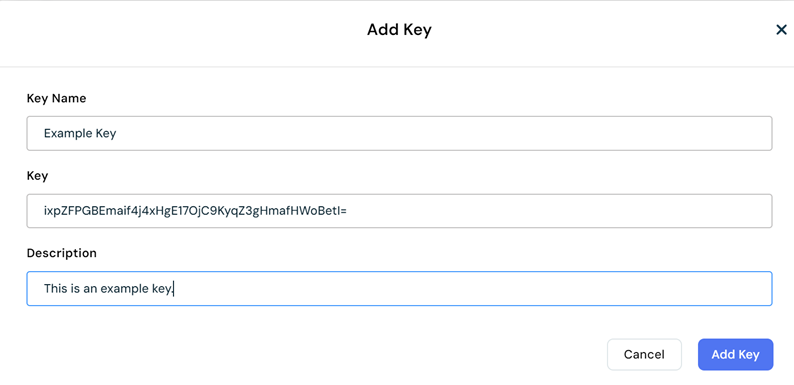
5. In the Add Key dialog:
* Key Name - Enter a descriptive Key Name.
* Key - Copy the Base64 encoded cryptographic key (hashed with SHA-256).
* Description - Enter a short text that describes the key.
SVTA Component: QW.DiscoveryUrlSigning
In the configuration JSON, the SVTA metadata type for this feature is QW.DiscoveryUrlSigning. It is added to the configuration JSON when you save the configuration version. This is a private feature developed by Qwilt
This example specifies that a long token is required to validate an incoming request and instructs the CDN to remove the token from the URL before forwarding the request to the origin.
{
  "generic-metadata-type": "MI.PrivateFeature.Qwilt.QW.DiscoveryUrlSigning",
  "generic-metadata-value": {
    "rejectCode": "403",
    "keySet": "3",
    "auth-mode": "long-token",
    "should-strip-token": true
  }
}
| Field | Valid Values |
|---|---|
| keySet | The key ID, as it appears in the Key Management dialog. When a key is uploaded to the CDN, the key ID is automatically assigned by the CDN. |
| rejectCode | any 4xx or 5xx error code |
| should-strip-token | true, false |
| auth-mode | short-token, long-token, both-tokens |